Based on our experience implementing iDempiere, there are several scenarios that require users to enter master data quickly within a transaction menu. This scenario usually occurs in industries engaged in direct customer-facing business, such as retail stores.
The most frequently encountered example is when a business has a physical store and is visited by many walk-in customers every day. The store might encounter new customers daily, so a method to quickly complete Business Partner data, such as name, address, and phone number, is highly necessary.
What is the Quick Entry Feature in iDempiere?
This is where the Quick Entry feature serves as the perfect solution. Quick Entry allows you to input master data quickly right from a transaction menu. For example, in the Sales Order menu, you can input Business Partner data without the need to switch to another menu.
You can also specify which fields should be displayed in the Quick Entry prompt, ensuring the form focuses only on the most essential data. To demonstrate how to use Quick Entry, we will use the scenario mentioned above: inputting a new Business Partner within the Sales Order menu.
How to Use Quick Entry in the Sales Order Menu
1. Steps to Enter New Business Partner Data
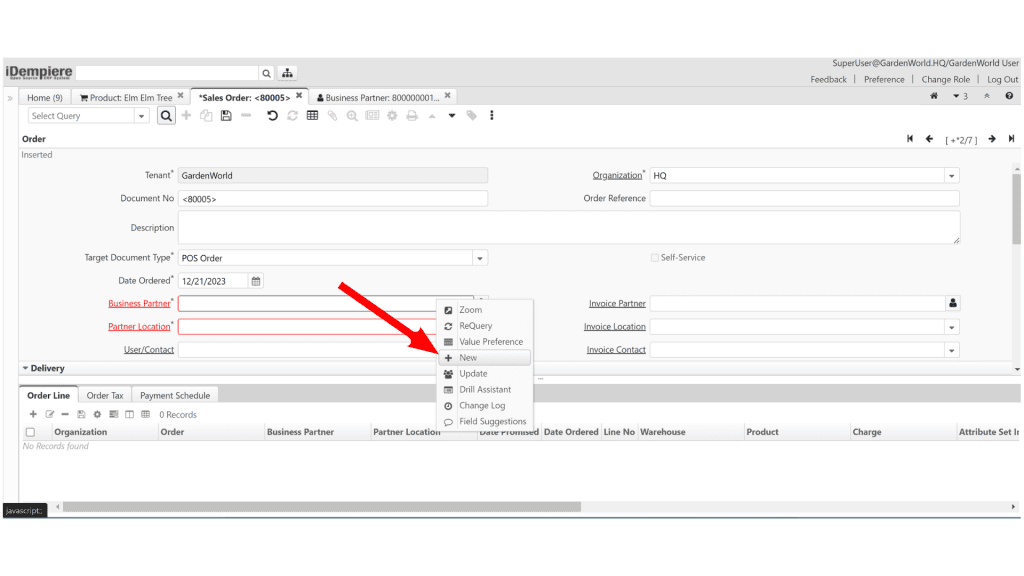
To begin, navigate to the Sales Order menu and click the Create New button to generate a new Sales Order. If you are dealing with a new Business Partner, simply right-click on the Business Partner field, and a New option will appear.
Click New, and a small pop-out window will appear for you to input the new Business Partner. Fill in the required fields such as the Business Partner name, Contact name, phone number, email, and the Location (which contains their address).
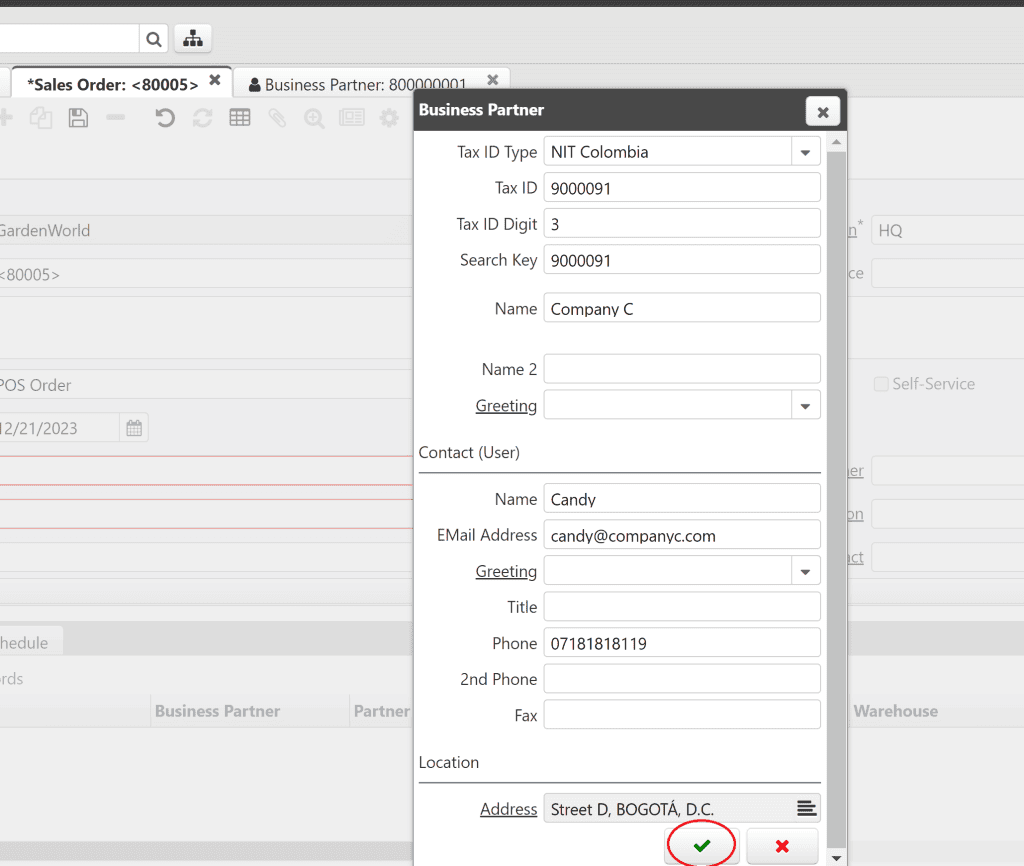
Once done, click OK, and the new Business Partner will be successfully created. This new Business Partner will also automatically populate the Business Partner, Location, and Contact fields within your Sales Order.
2. How to Update Business Partner Data
What if there is a typo or an input error in the newly created Business Partner? Fixing it is very straightforward. Just right-click on the Business Partner field again, and this time, select the Update button. A pop-up menu will appear containing the data of the Business Partner you just created.
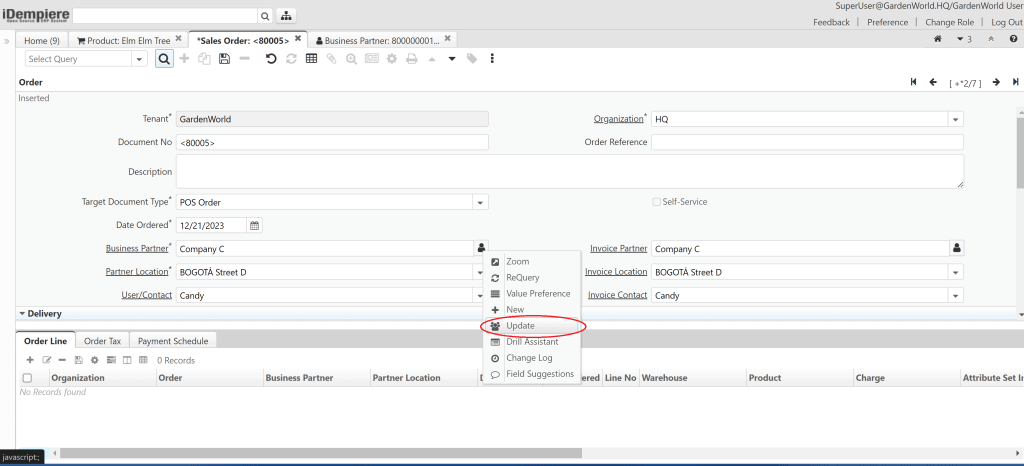
Make the necessary edits in the desired fields, then click OK. The field will be immediately updated, and the data will automatically reflect the changes in the Sales Order menu.
3. Checking and Adding a Business Partner from the Info Menu
The scenario above applies when we already know that the arriving customer is brand new. However, users often ask for the customer’s name first to check whether they have previously been registered as a Business Partner in iDempiere.
The standard procedure is to type the mentioned name into the Business Partner field to search for it. If a matching Business Partner is found, you simply select it. If not, you will need to create a new one.
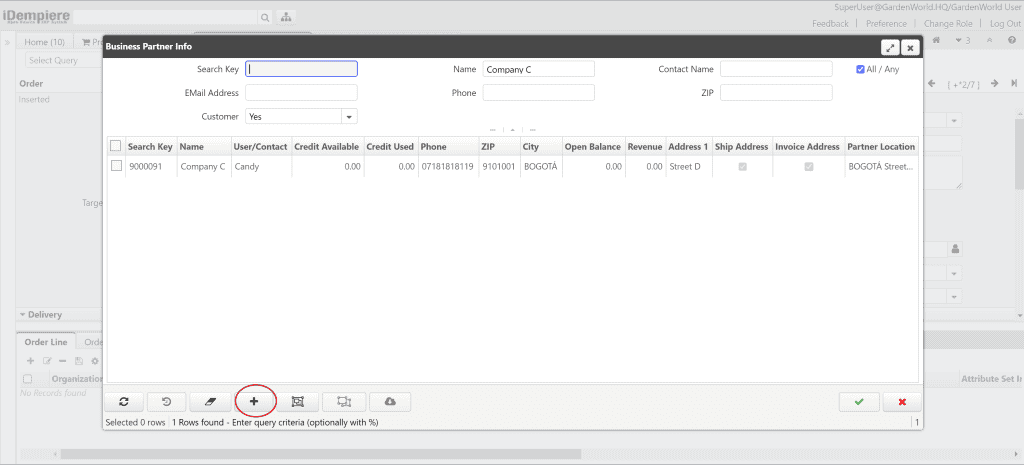
In the Business Partner Info display, there is also a New button at the bottom indicated by a (+) icon. Click that button to create a new Business Partner and fill in the data just like the previous method. Afterward, click OK, and the Business Partner can be directly selected through the Business Partner Info to populate the Sales Order.
How to Configure Quick Entry as a System Administrator
Besides Business Partner, other master data can also be configured to utilize the Quick Entry option. The Business Partner itself comes with a default Quick Entry setup built-in by iDempiere.
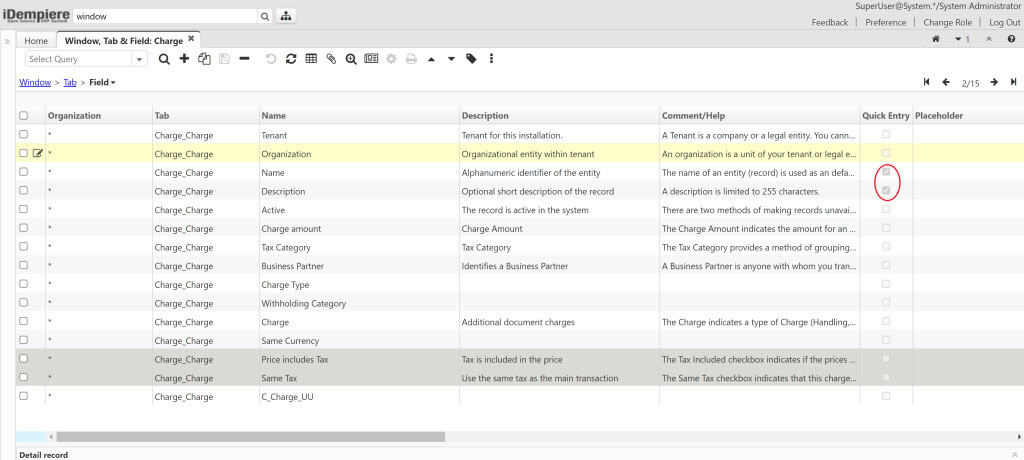
To configure Quick Entry, log in using the System Administrator role and open the Window Tab and Field settings. Look for the Window you want to enable Quick Entry for, such as Product or Charge.
Next, find the Field you wish to display in the Quick Entry prompt and check the Quick Entry checkbox. Once configured, this master data can be entered via Quick Entry simply by right-clicking on its respective field.
That is how you can perform master data entry without having to switch menus. Tips like this are incredibly useful for boosting speed and user convenience in iDempiere, particularly for industries that demand rapid transaction processing. Good luck trying it out!