Welcome back to the Kubernetes Expedition! Before we dive into the fascinating labyrinth of the Kubernetes world, the first step we must take is to prepare our local environment by installing Kubernetes. This article will guide you through the local Kubernetes installation steps, ensuring you are ready to explore the containerized universe.
Why Installing Local Kubernetes Matters
Installing Kubernetes in a local environment provides several valuable benefits:
- Efficient Local Development: With a Kubernetes environment on your local machine, you can efficiently develop and test your applications before deploying them to production.
- In-Depth Understanding: A local installation allows you to gain a deeper understanding of various Kubernetes components, core concepts, and how clusters interact.
- Cluster Simulation: By installing Kubernetes locally, you can simulate clusters to test your application’s scalability and performance.
Steps to Install Kubernetes in a Local Environment
1. Selecting an Installation Tool
To begin installing Kubernetes in a local environment, you need to choose the right tool. Some popular options include:
- Minikube: Ideal for single-node installations, allowing you to run a full Kubernetes cluster on your local machine.
- Docker Desktop: If you are already using Docker Desktop, you can easily enable Kubernetes directly through the settings.
- Kind (Kubernetes in Docker): Enables you to create Kubernetes clusters by using Docker containers as nodes.
2. Prepare the Environment
Ensure that your hardware and software meet the necessary system requirements. Additionally, make sure Docker is installed and running properly, as several local Kubernetes installation tools depend on it.
3. Minikube Installation (macOS)
a. Installing Minikube
Minikube can be installed using a package manager or via direct download. Here is an example using the Homebrew package manager:
brew install minikubeb. Starting the Cluster
Once the installation is complete, run the following command to start the Minikube cluster:
minikube start --driver=hyperkitMinikube will download the required images and set up the Kubernetes cluster on your local machine.
c. Checking Minikube Status
Once you see the “Done!” message in your terminal, run minikube status to ensure the cluster is healthy. Pay special attention to the apiserver, which should be in the “Running” status.
4. Installing Kubernetes with Docker Desktop (Windows)
a.Installing Docker Desktop
Please perform a manual installation by visiting the following link, Download Docker Desktop
b. Installing WSL (Windows Subsystem for Linux)
Open Command Prompt and run the following command to download or update WSL:
wsl.exe –updatec. Starting Kubernetes
- Open Docker Desktop.
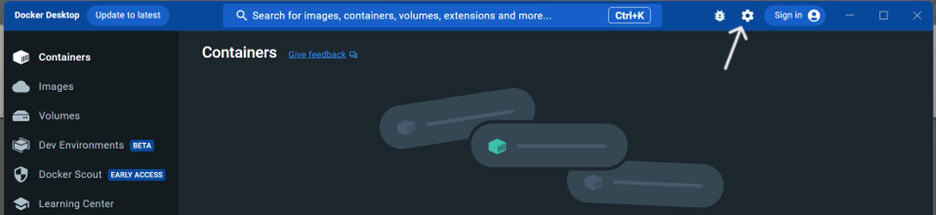
- Click the Gear icon in the top menu of the Docker Desktop application.
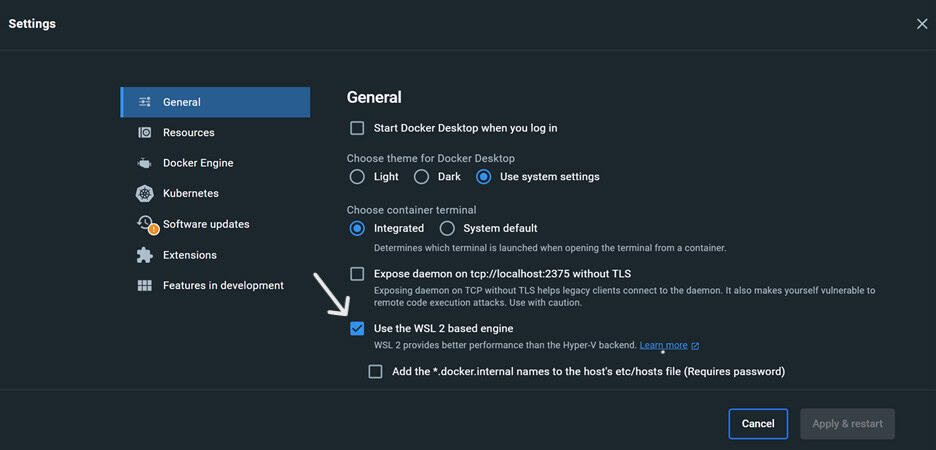
- In the General settings, ensure that the “Use the WSL 2 based engine” box is checked. This assumes that WSL 2 is supported by your OS and has been installed and enabled.
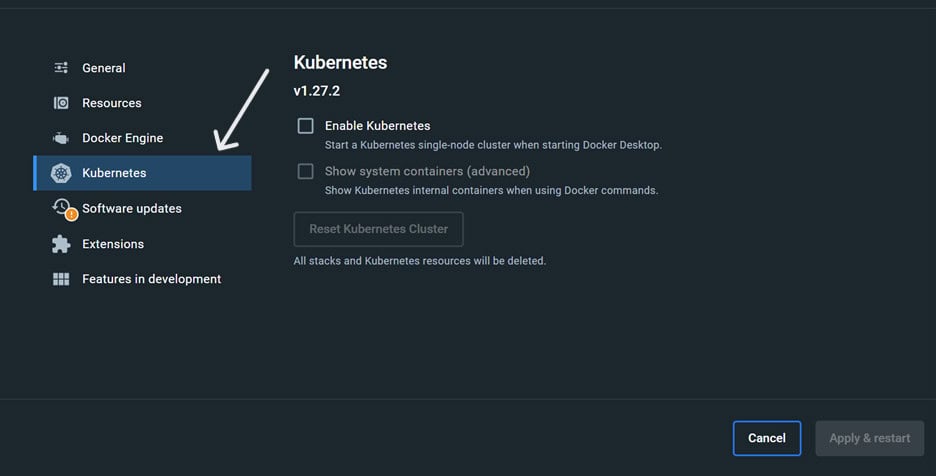
- Click Kubernetes in the left menu.
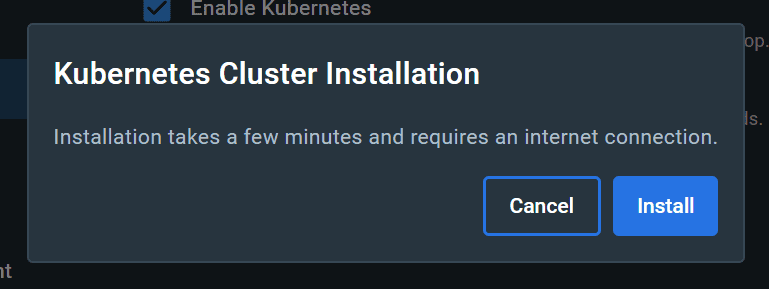
- Then, check the “Enable Kubernetes” box and click Apply & Restart.
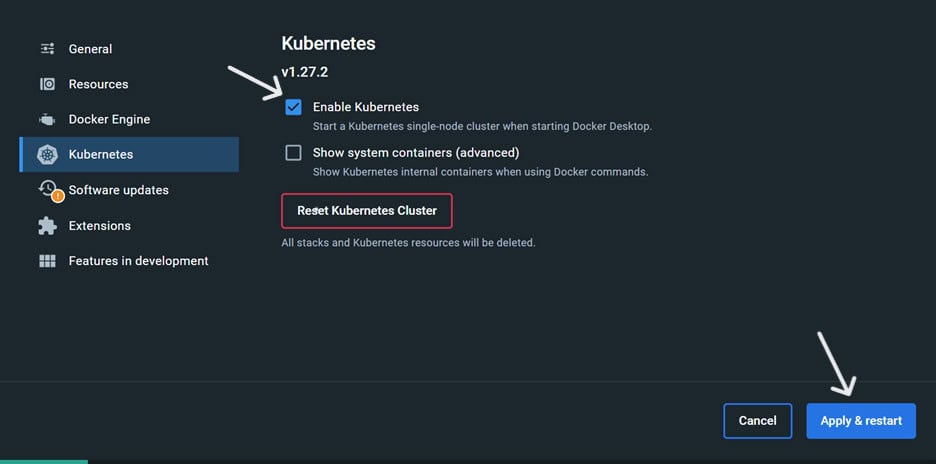
- After clicking Apply & Restart, click Install.
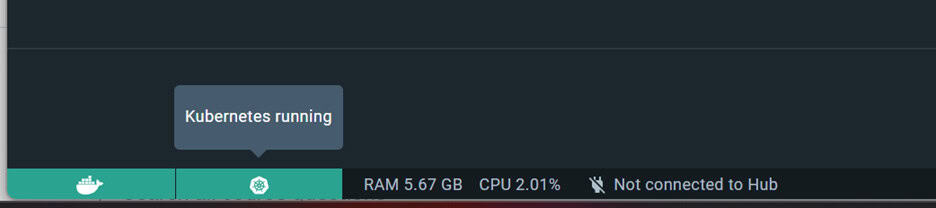
- Once the installation dialog disappears, look at the bottom-left corner of the General Settings page and ensure that a green Kubernetes icon is present. If you click on it, a “RUNNING” tooltip will be displayed.
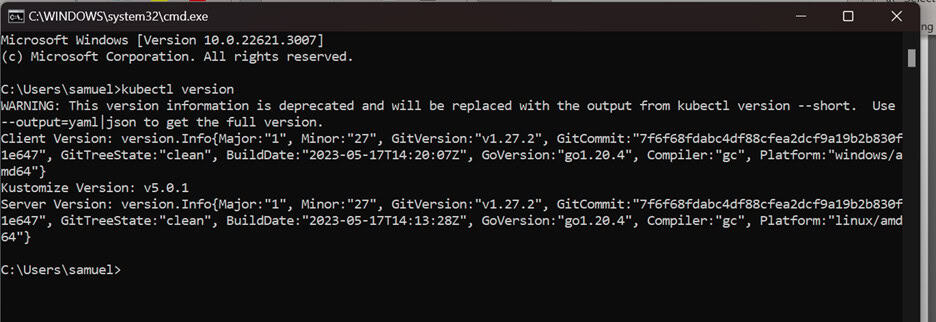
- Finally, open your preferred terminal and verify that you can run
kubectl version.
5. Verifying the Installation
Ensure that the installation is running smoothly by checking the cluster status:
kubectl cluster-info
You are now ready to begin your expedition into the world of Kubernetes in a local environment!
Conclusion
By following these installation steps, you have successfully set up your local environment to run Kubernetes. In the next article of the Kubernetes Expedition series, we will dive deeper into the core concepts and take a step further into using Kubernetes to manage containers. Get ready for an insightful adventure!
Don’t miss the upcoming episodes in the Kubernetes Expedition: Unpacking the Containerized Universe series. Enjoy your journey into the wonders of Kubernetes!