Following up on our previous introduction to ERPNext features where we explored User Management, this time I would like to highlight the Workflow feature. This tool empowers organizations to design, automate, and streamline their business processes, ultimately boosting overall efficiency and productivity.
A Workflow in ERPNext is a visual representation of a sequence of steps or tasks that a document or transaction must pass through within the system. It acts as a roadmap for the entire lifecycle of a record, guiding it from its initial creation to final completion. The Workflow module enables users to define the specific sequence of steps, conditions, and approvals required for any given process.
How to Create a Workflow

From the home screen, click on “Build”

Then, click on “Workflow”

You can choose either “Create a New Workflow” or “Add Workflow” both work the same way

Next, provide a name and select the document type. Here, I chose Purchase Order as an example. You can also create workflow states and transitions using the ‘Workflow Builder’, but in this example, I am using the table method at the bottom of the page. A State represents the document’s status, such as ‘Draft’ or ‘Submit’, and a Transition is the movement from one state to another, such as moving from the ‘Draft’ state to the ‘Submit’ state

You can add states and transitions in these tables as desired


For example, my workflow requires a ‘purchase user’ to get approval from the ‘purchase manager’, and then pass it to the ‘purchase master manager’ for another approval before it can be submitted when creating a Purchase Order.
This is the view of a newly created Purchase Order by a ‘purchase user’; as you can see, it is currently in the ‘Approval Pending by Purchase Manager’ state

If the page is opened by the ‘Purchase Manager’, an ‘Action’ button will appear in the top right corner. Here, the ‘Purchase Manager’ can approve or reject the Purchase Order created by the ‘purchase user’

Here, I approve it, and it moves to the next state, ‘Approval Pending by Material Manager’. In this state, it must be approved by the ‘Purchase Master Manager’

Once approved, the screen will look like this. The state is now ‘Approved’ and submitted.

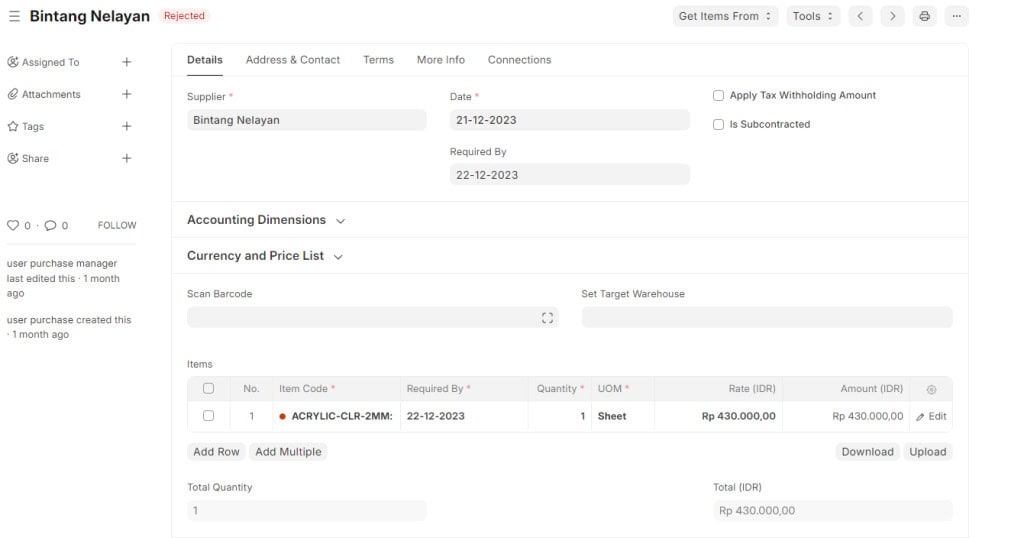
And if it is rejected, it will look like this.
The Workflow feature in ERPNext is not just a tool for optimizing workflows, but also an integrated solution that provides a deep understanding of every stage in a business process. By leveraging its analytical and tracking capabilities, it can increase operational efficiency while ensuring that every decision is based on accurate and up-to-date information. Additionally, this feature facilitates better collaboration among teams, allowing organization members to interact synergistically in carrying out their tasks. With a more precise control mechanism, companies can manage every aspect of their business processes, making ERPNext a vital tool for achieving larger and more sustainable business goals.