ERPNext has a variety of features, one of which is the email feature. This feature is used to collaborate effectively with colleagues, customers, and vendors. It also allows you to send and receive emails directly from ERPNext, track your email status, and access your email history. If you use ERPNext to manage your business functions, you may encounter situations where you need to send or receive emails through the ERPNext database itself. Therefore, you need to configure an email account in your database. Here, we will explain how to do it.
Here is how to configure an email account in ERPNext. Follow these steps:
- Go to ‘Email Account’ and click ‘Add Email Account’.
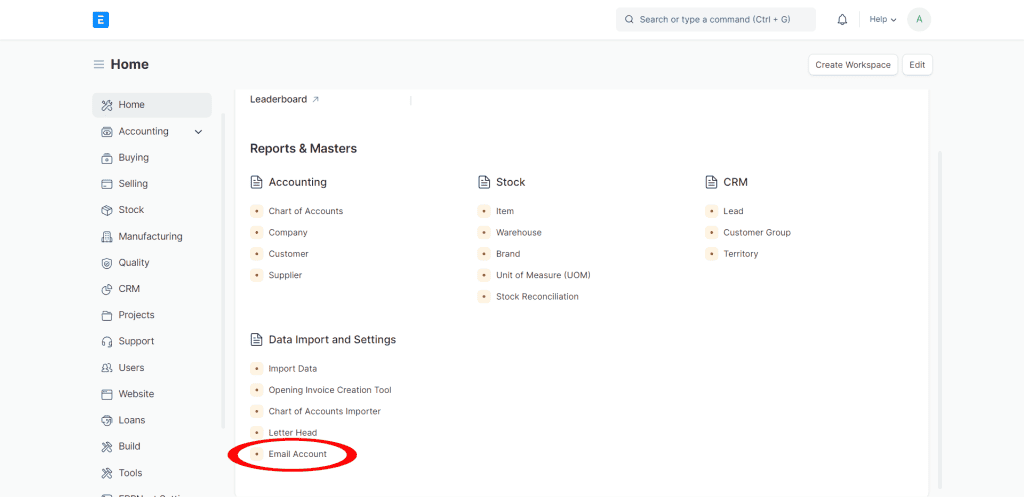
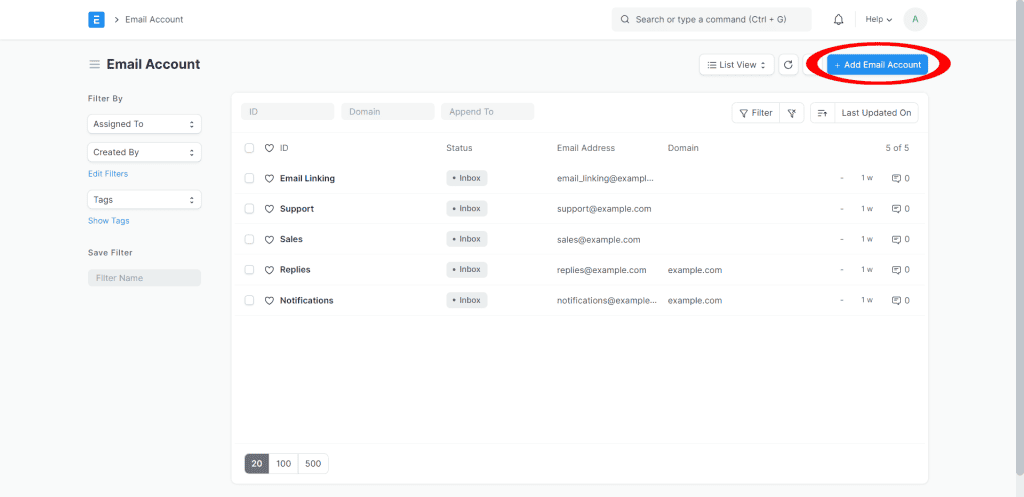
The email account view on the ERPNext dashboard.
Enter the ‘Email Address’ and ‘Password’ for your email account. You can also select a ‘Service’ from the list of popular email providers, such as Gmail, Outlook, Yahoo, etc. (For Gmail and other services that use 2-Factor Authentication, you must use an app password to log in).
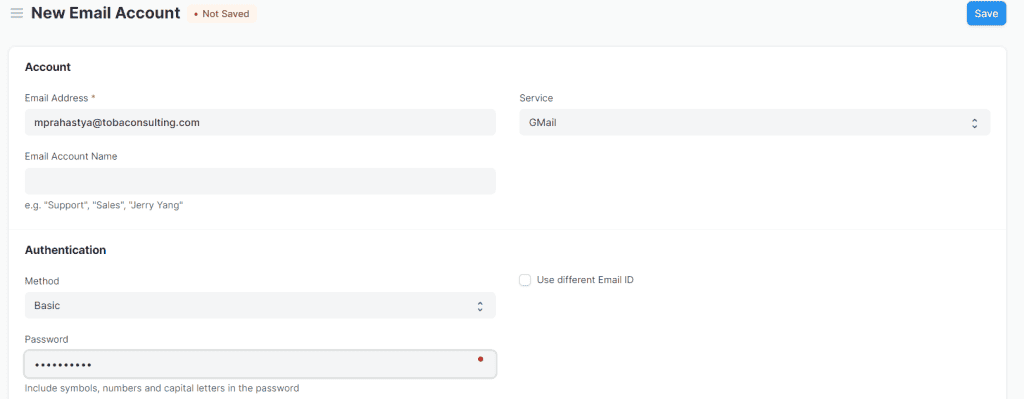
The new email account view for entering the email address and password.
Select the ‘Enable Incoming’ and ‘Enable Outgoing’ checkboxes if you want to receive and send emails from ERPNext. You can also specify the ‘Append To’ option to link incoming emails to specific document types, such as Lead, Opportunity, Issue, etc.
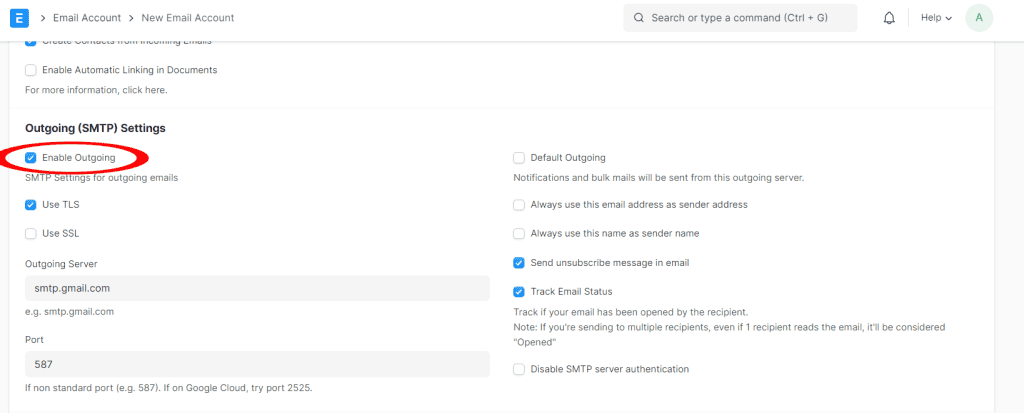
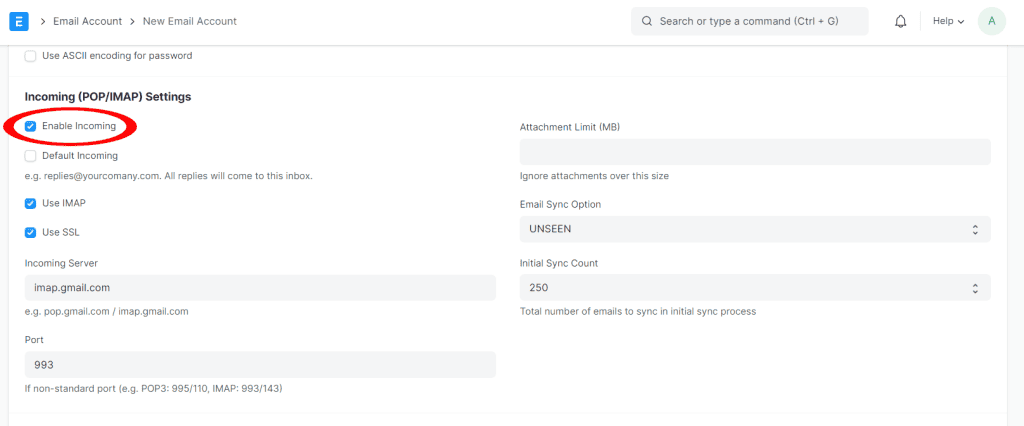
The view showing the location of the ‘Enable Outgoing’ and ‘Enable Incoming’ options.
Click ‘Save’ at the top right corner to create the email account. ERPNext will automatically fetch the email settings and verify the connection.
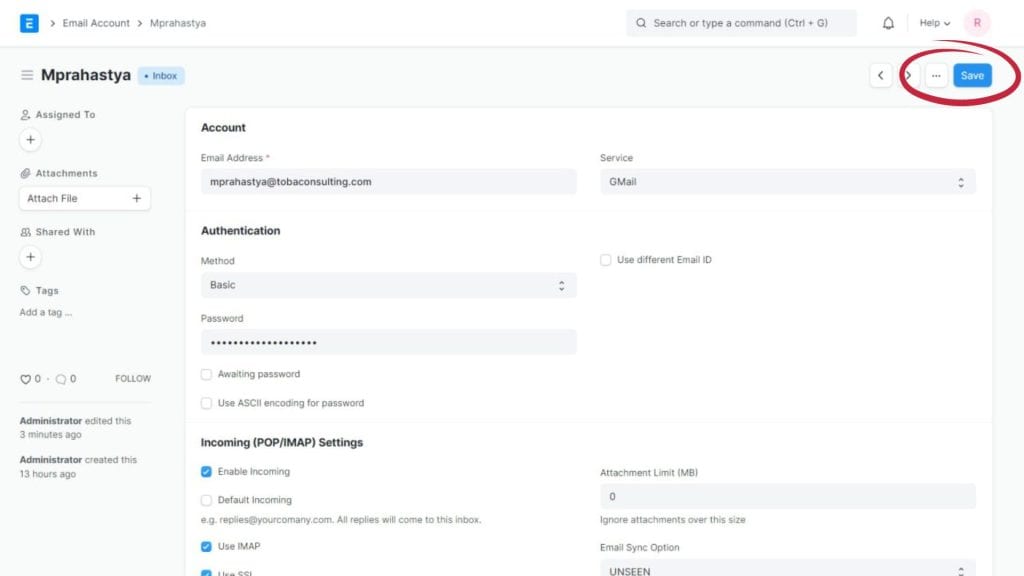
The view of the ‘Save’ button located at the top right corner (circled in red).
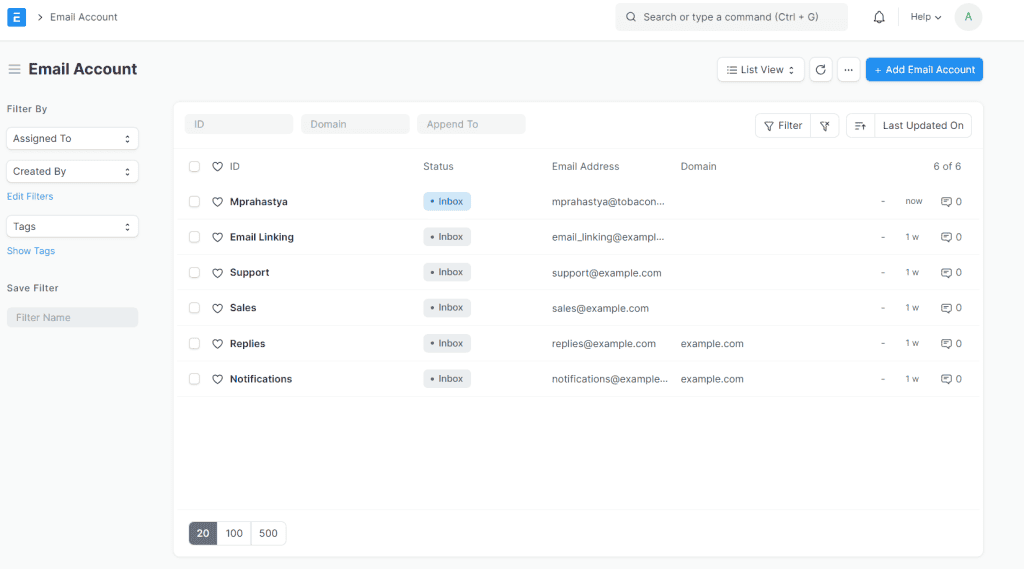
The view of the registered account in ERPNext.
After configuring your email account, you can send emails from ERPNext by clicking the ‘New Email’ button in any document. You can then select your email recipients, add a subject and email body, and attach any files. ERPNext will also automatically create an email thread for each document, so you can easily track your conversations with others. Additionally, you can access your inbox by navigating to the Email Inbox. You can also compose a new email by clicking the “Add Communication” button on the Inbox page. Here, you can attach files, add recipients, CC, BCC, and use the text editor to format your email content.
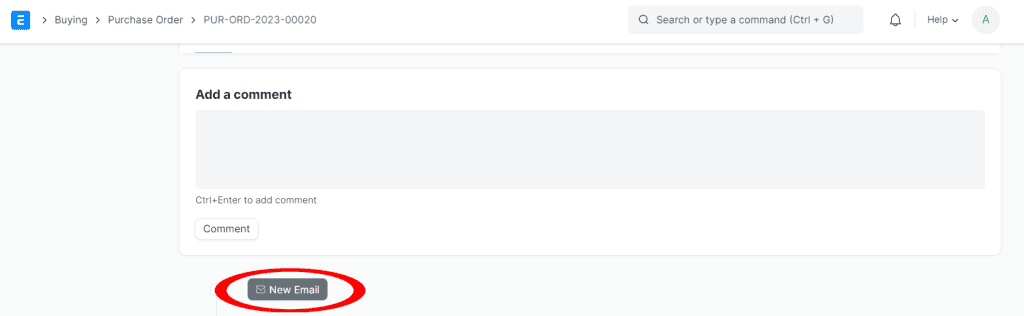
The view showing the location of the “New Email” button in ERPNext.
With the advanced and efficient email features in ERPNext, business collaboration becomes more integrated and effective. The ability to send and receive emails directly from this platform facilitates interactions with colleagues, customers, and vendors. And with the simple email account configuration steps, ERPNext provides easy access and full control over your business communications. By utilizing the email features in ERPNext, users can easily improve collaboration, efficiency, and productivity in their daily operations.