Continuing from the previous introduction to ERPNext features where we explored the Email feature, this time I want to highlight a crucial feature for all ERPNext users, especially those looking to migrate data from other platforms into ERPNext: the Data Import feature. This feature is straightforward and easy to use. With the Data Import feature, users can easily transfer master data, such as customers, suppliers, products, and more, as well as transaction data, like sales, purchases, and others. The Data Import feature supports various file formats, such as CSV and Excel. Users can customize the file format according to their needs. ERPNext also provides a data export feature that can be used to export data from ERPNext into desired file formats such as CSV and Excel.
Here is how to import data in ERPNext, follow these steps:
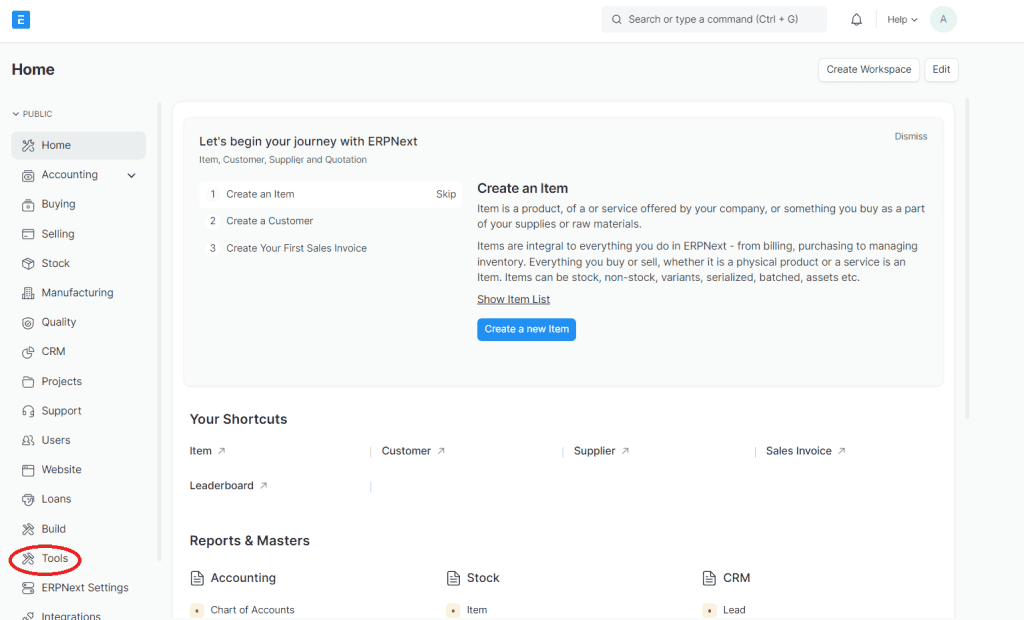
Open ‘Tools’ on the home page.
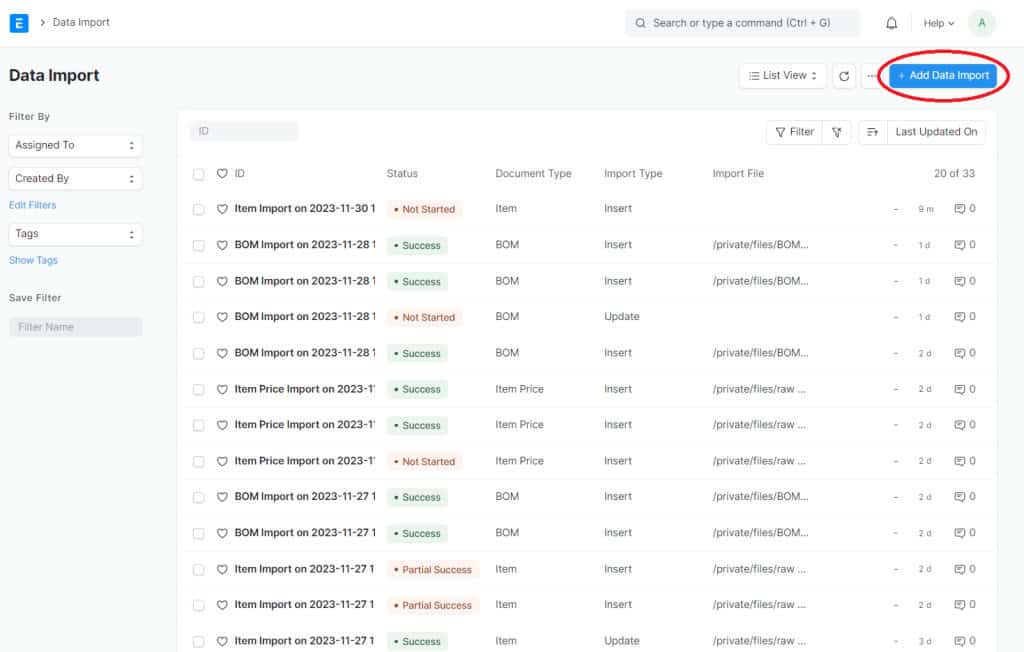
- Click ‘Import Data’

- Then ‘Add Data Import’
- Select the Document Type you want to import; in this example, I will be importing the ‘Item’ DocType.
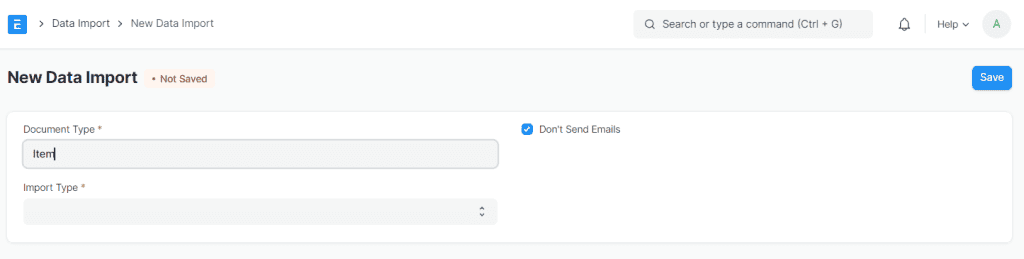
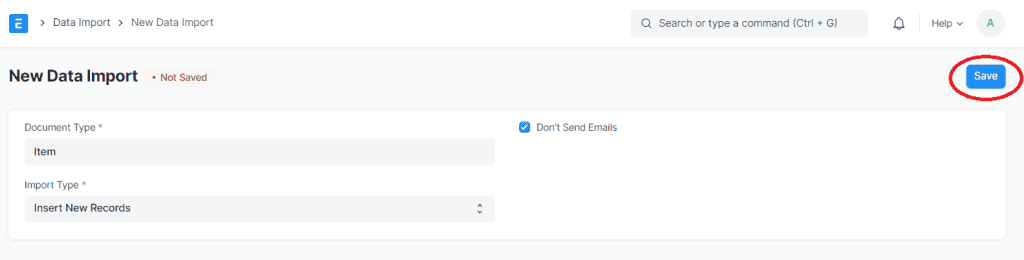
- Select the type of import you want to perform. I will use ‘Insert New Records’ to add new items, but you can also use ‘Update Existing Records’ if you want to edit items that already exist in the database.


- Click ‘Save’
- Then, other options will appear.
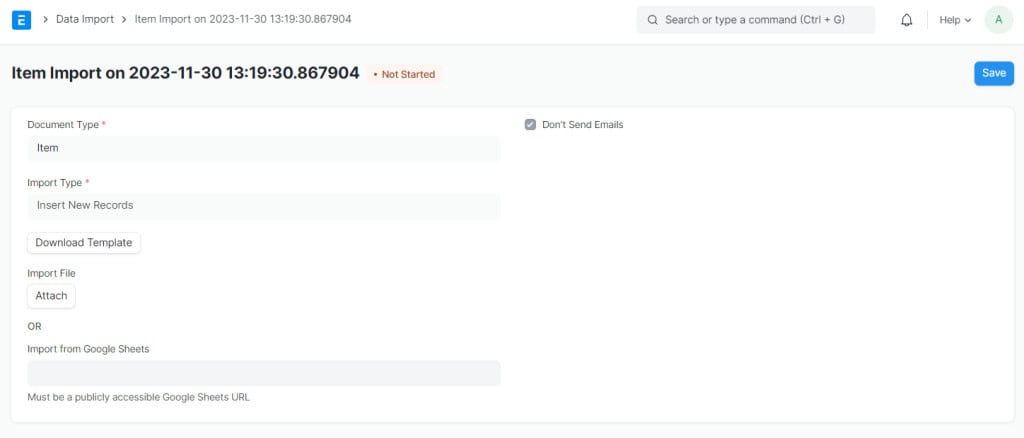
- Click ‘Download Template’ (the image is at the very bottom, WordPress is a bit confused)

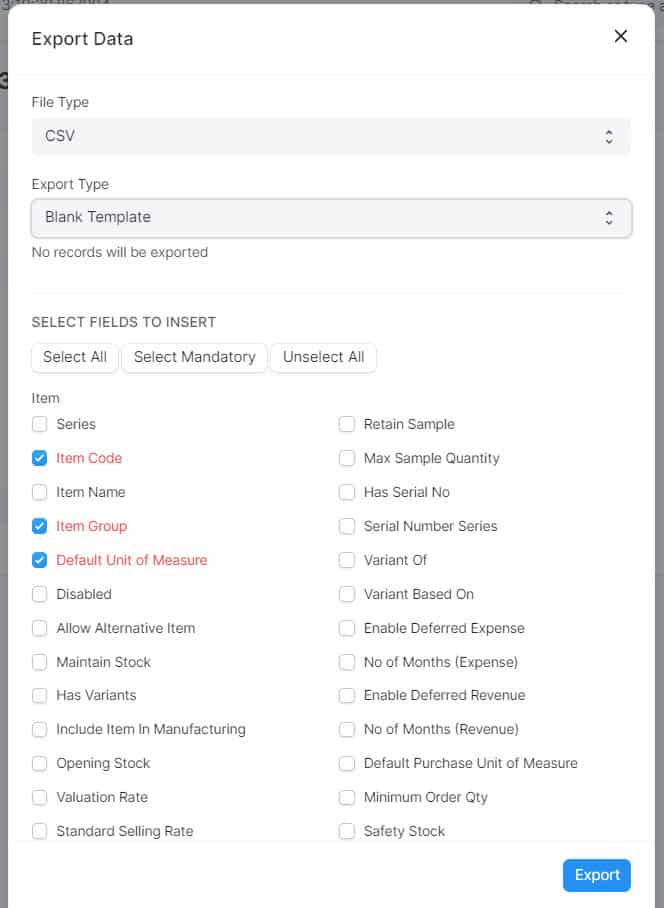
- This screen will appear; you can choose which columns you want to use and click export. I will only select the mandatory ones for this example.
- Fill in the Excel file with the data you want to import.

- Click ‘Attach’.

- Then, select the file you want to import and click ‘Upload’.

- Next, click ‘Start Import’ if there are no errors in the file’s columns.

- The data has now been successfully imported.


- And to use ‘Data Export’, return to the ‘Tools’ page, then click ‘Export Data’.

- Then, select the Document Type you want to export.

- After that, select the columns you want to export, and then click the ‘Export’ button.

Through the presence of these two features in ERPNext, users are provided with ease in transitioning data from previous platforms to the ERPNext environment. With the Data Import feature, the data transfer process becomes smoother and more efficient, minimizing the risk of information loss and ensuring optimal data integrity during the migration process. Users can also easily align the data structure from their old platforms with the format accepted by ERPNext, speeding up implementation time and reducing the potential for manual errors. Additionally, the Data Export feature opens up opportunities to optimize the use of data stored within ERPNext. Users can export data into various desired file formats, such as CSV or Excel, allowing them to perform further analysis, create more detailed reports, or share information with relevant parties seamlessly.